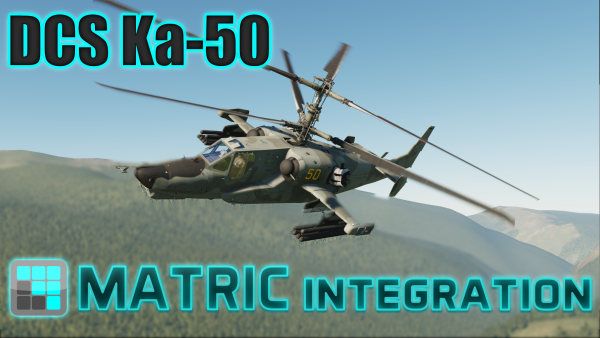
MATRIC has gained a lot of new capabilities since my first quick&dirty Ka-50 shwcase, so let's see if I can do it even better this time using 2.x features.
4) To have a nice LCD font on UV-26 display, download "DS-Digital" font from https://www.dafont.com/ds-digital.font and unzip it to your Documents/MATRIC/fonts folder
5) Open MATRIC settings, tab API INTEGRATION and make sure that "Enable 3rd party integration" is CHECKED and "Require integration PIN" is NOT CHECKED
6) Load the deck in MATRIC on your mobile device and enjoy
Quite a while ago I did a Ka-50 proof of concept to demonstrate how to use DCS export to integrate MATRIC with DCS. I decided to revisit DCS inspired by some very creative members of the community and do another DCS-MATRIC showcase.
I'll show you how you can use MATRIC as UFCP and it is much easier to set up with MATRIC 2.0
In this tutorial, we will integrate Ka-50 autopilot channel switches with MATRIC so that their state reflects the game state and vice-versa. Although this post might look really long, the procedure itself is not complicated, basically you will change one "false" to "true" and do two copy & paste actions.
Additional info is given in dashed frames.
This is a proof-of-concept and is not ment to teach best coding practices nor represent a bulletproof solution. Some shortcuts have been taken to focus on the important things.
Prerequisites
Download and install MATRIC version 1.22 or higher installed on Windows. Version thing is important as the script uses extended integration API introduced in 1.22
We will need this Id in the next step as we will use this Id to tell MATRIC we want to integrate with this particular device.
Although MATRIC integration API has a method which answers the question "Hey MATRIC, which devices are currently connected?" we will not use it, but will instead just hard-code the client device id in our DCS export script.
1.5 Save config and restart MATRIC
Save the config and restart MATRIC (right click on tray icon, choose "Quit" and the start it again)
2. The DCS side of things
DCS allows you to add code which can read the game data and do something with it. It is done by writing an export script in LUA language.
It is simple, I learned enough of it in an hour to create this proof of concept (and I'm no coding ninja).
2.1 matricka50.lua
Copy the matricka50.lua to your C:\Users\<your username >\Saved Games\DCS\Scripts", open it in notepad and modify the line
MATRIC.clientId = "some gibberish"
You need to paste the Id from the step 1.4 between the "". In our example the Id was ivUP0l+n06oCAR6XYzZPdclCSURAVjGSyv27b42aT+o=
Save matricka50.lua
2.2 Export.lua
This is a script you already have, it gets executed when DCS runs it can also be found in "C:\Users\<your username >\Saved Games\DCS\Scripts". We will just need to add a single line at the end and save it: